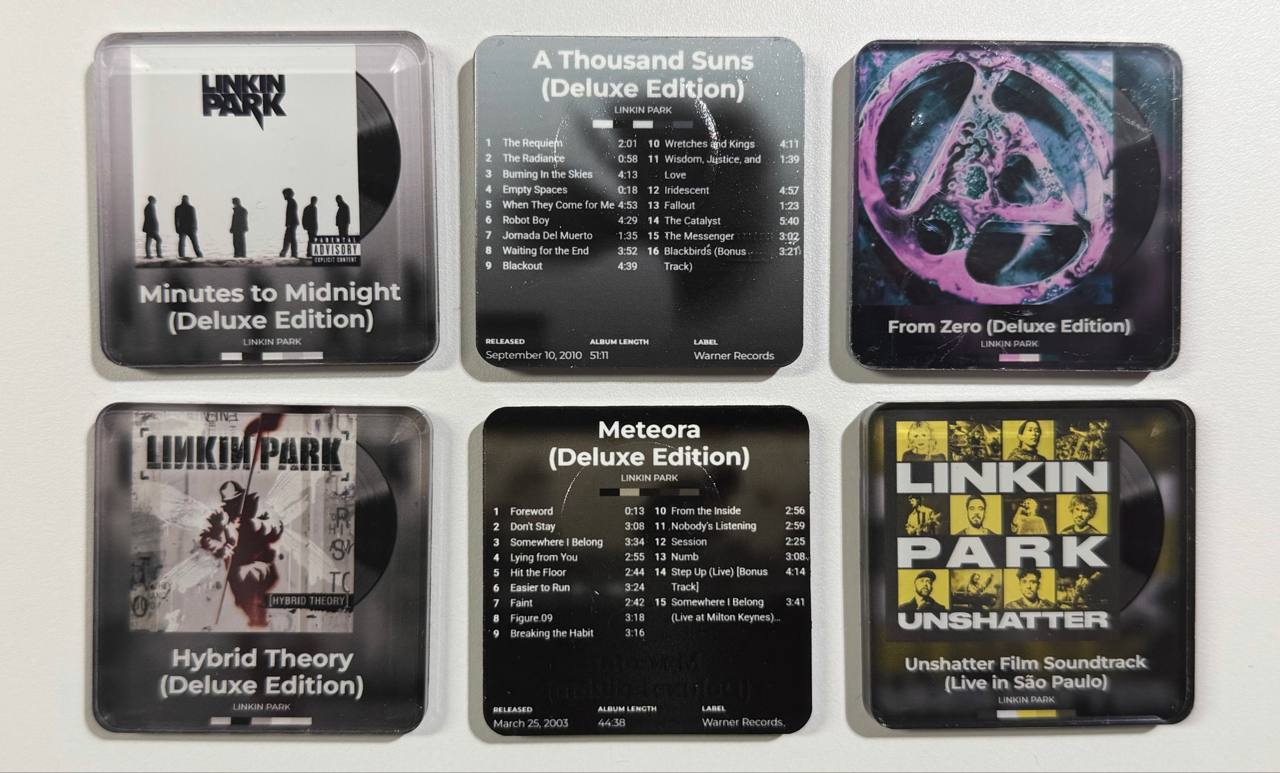
With the album poster generator you print an album cover onto a small acrylic tile. An NFC tag behind it turns the tile into a play button: hold your phone to it and the album starts in Spotify or Apple Music.
The tile comes in two variants:
- Magnet: the cover on the front, a magnet on the back. For the fridge or any other metal surface.
- Standalone: no magnet, but you can look at it from both sides. The cover on the front, the track list and details on the back.
To the tool: https://inkbuddy.app/tools/album-poster/
Guide to the tool: Album Poster Generator
¶ Materials
| # | Part | Where to buy |
|---|---|---|
| 1 | Acrylic magnet blank 5 × 5 cm | Amazon* · AliExpress* |
| 2 | NFC tag NTAG215 (2.5 cm), self-adhesive | Amazon* · AliExpress* |
You also need a UV printer with white and gloss, and a phone with NFC.
The blanks are meant for home-made fridge magnets; the magnet is included.
* Affiliate link: if you buy through it, I get a small commission. The price stays the same for you.
¶ The templates
| Template | Content | Open |
|---|---|---|
| Template 1: Cover | Cover with bloom effect, vinyl record, title, artist and colour palette | Template 1 |
| Template 2: Track list | Cover with bloom effect as the background, title, artist, track list and details | Template 2 |
A template holds only the design. Your album and cover stay when you open one – so you can load your album first and then switch between the templates.
For the magnet you use template 1 or 2, for the standalone tile both.
¶ The blank
The blank has a film on each side:
- Clear film: the self-adhesive side. This is the side you print on. Peel the film off before printing.
- Matte, milky film: a protective film only. It stays on while you print and glue, and comes off at the very end.
So you print from the back. Later you look through the acrylic from the matte side onto the print – which is why the front is printed mirrored.
¶ Variant 1: Magnet
- Open template 1 or 2 and load your album and cover. Use the search to fill in the album data.
- In the Format and export card, check: use UV print, 50 × 50 mm.
- In the UV print card, switch Mirror on. The templates do not include it.
- Download the Print layers as ZIP.
- Peel off the clear film, place the blank in the printer with that side up and print:
- 1× CMYK + 4× white
- Optional: stick the NFC tag onto the centre of the print.
- Stick the included magnet onto the print, or over the tag.
- Peel off the matte protective film.
The four layers of white make sure the print is fully opaque.
¶ Variant 2: Standalone
Here you print on the same side twice: first the front, then – over the NFC tag – the back.
- Open template 1 and load your album and cover. Check the format as in variant 1, switch Mirror on and download the print layers.
- Peel off the clear film and print on that side:
- 1× CMYK + 4× white
- Stick the NFC tag onto the centre of the print. The blank stays in the printer while you do this.
- Open template 2 with the same album. In the UV print card, check that Mirror is switched off, and download the print layers.
- Print on the same side, over the print and the tag:
- 1× white + 1× CMYK + 1× gloss
- Peel off the matte protective film.
On the front you see the cover through the acrylic, on the back the track list. The tag sits hidden in between.
For front and back to line up, the blank must not move between the print steps. Alternatively, place it in a jig (see Tips and tricks).
The gloss layer protects the back print from scratches. For more protection, print it thicker.
¶ Video: the steps in the app
The video is coming soon.
¶ Writing the NFC tag
- In Spotify or Apple Music, copy the link to the album (Share → Copy link).
- Open any NFC app, for example NFC 21 on iOS or NFC TagWriter by NXP on Android.
- Create a record of type link (URL), paste the copied link and write it to the tag.
- Hold your phone to the tag and check that the album starts.
It is easiest to write and test the tag before you stick it on.
¶ Tips and tricks
¶ Print a jig first
A jig printed onto the print bed shows you where the blanks go, so they sit in the same spot for every print.
- In your print software, create a rectangle the size of the blank.
- Set Colour to transparent.
- Set Stroke to red, Contour to outside and the thickness to 0.5 to 1 mm.
- Set the layer to 1× white. If you want to feel the edge, print more layers.
- Create as many rectangles as blanks you want to print at once, and print them straight onto the print bed.
- Set the rectangles to “do not print” right afterwards!
¶ Long titles
- If the title or artist is too long, adjust the font size (Design card → Do it yourself).
- A
|puts a line break at a place of your choice, for exampleRandom Access | Memories.
¶ Notes
- NFC on the fridge: metal interferes with NFC. With the magnet on the fridge, the tag may read poorly or not at all, depending on the model. Special tags that work on metal help here (on-metal or anti-metal tags).
- Only use covers you hold the rights to, or keep the tiles strictly private.