The Mosaic Generator turns an image into a mosaic of square or round 1×1 pieces and gives you true-to-scale print files (colour and bump map) for eufyMake Studio. It is for anyone who prints on plates, tiles or 1×1 plates with a UV printer, or who wants a parts list for a mosaic built from real bricks.
Link to the tool: https://inkbuddy.app/tools/mosaic-generator/?lang=en
¶ Step by step
-
Drop an image (JPG, PNG or WebP) onto the Image card, or click the field and pick a file. Your image is processed in your browser only and is never uploaded.
-
Choose the crop: drag the image with the mouse, zoom with the mouse wheel or the Zoom slider. The crop always has the aspect ratio of your grid.
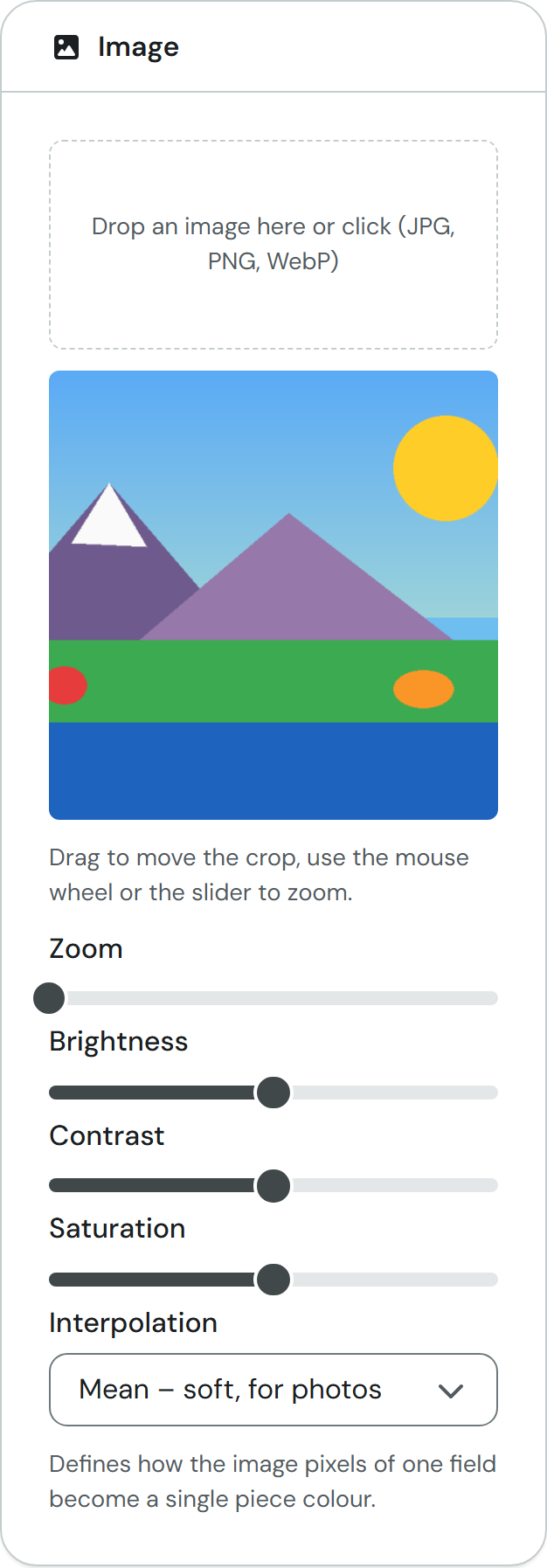
Look at the crop in the middle of the card: exactly this part becomes the mosaic.
-
In the Size card set Width (studs) and Height (studs). The example uses 48 × 48 studs; the size in millimetres is shown below (48 × 8 mm = 384 × 384 mm). Plate size for the export splits the mosaic into plates, 16 × 16 in the example. Below it you see how many plates that makes: "Plates: 3 × 3 = 9".
-
In the Piece type card pick the piece, for example "Tile 1×1, square".
-
In the Colours card choose the Colour mode. With "Brick colours" every field is rounded to a real brick colour and you get a Parts list. In the example Max. number of colours is set to 8.
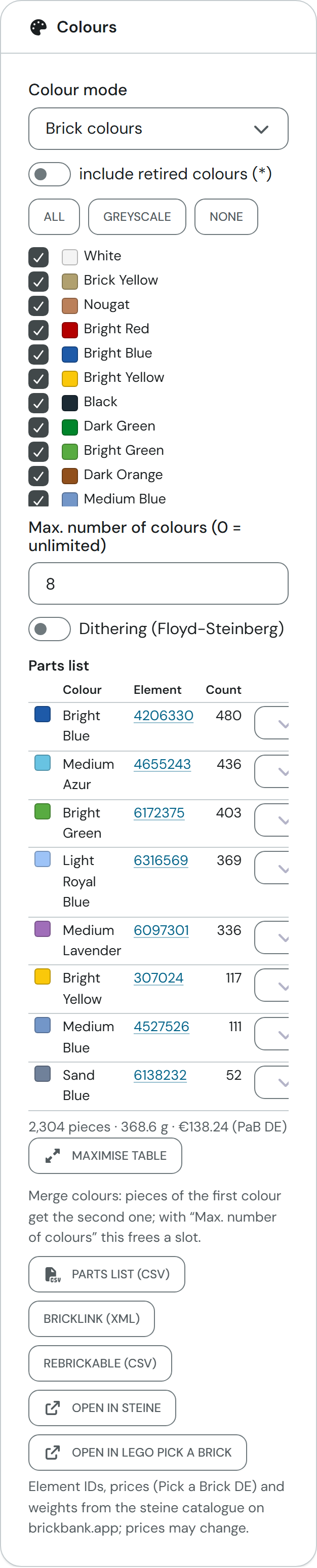
The parts list counts how many pieces of each colour you need. The total below the table shows 2,304 pieces (48 × 48) in the example, plus weight and price.
-
Do you want to build the mosaic from real bricks? Check the Element column and the total, merge colours if needed, and download the parts list or hand it over to steine or LEGO Pick a Brick (see "Parts list and ordering").
-
Check the result in the Preview card. With "Paint" you correct single pieces by hand.
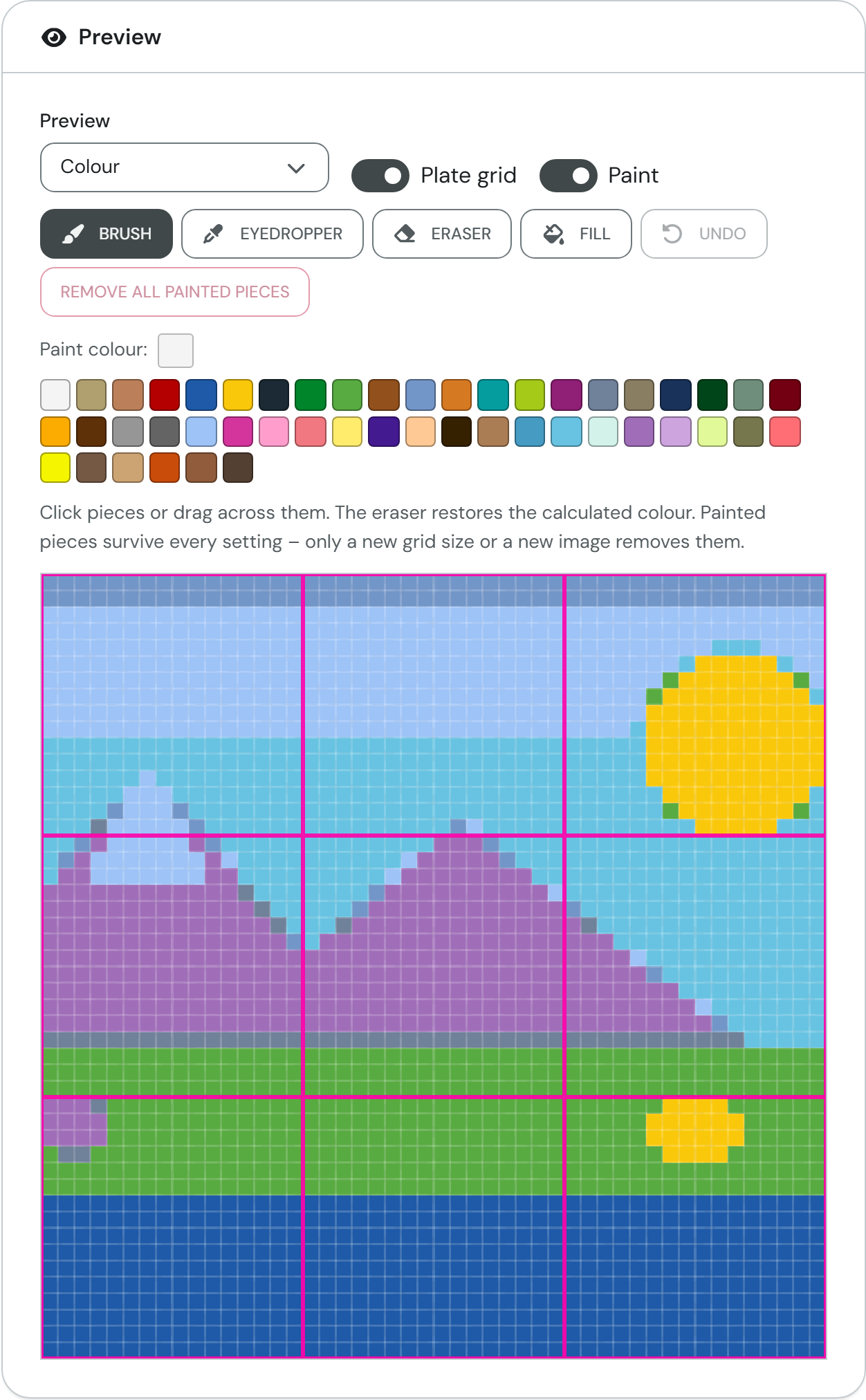
The pink lines show where the 16×16 plates end (3 × 3 plates here).
-
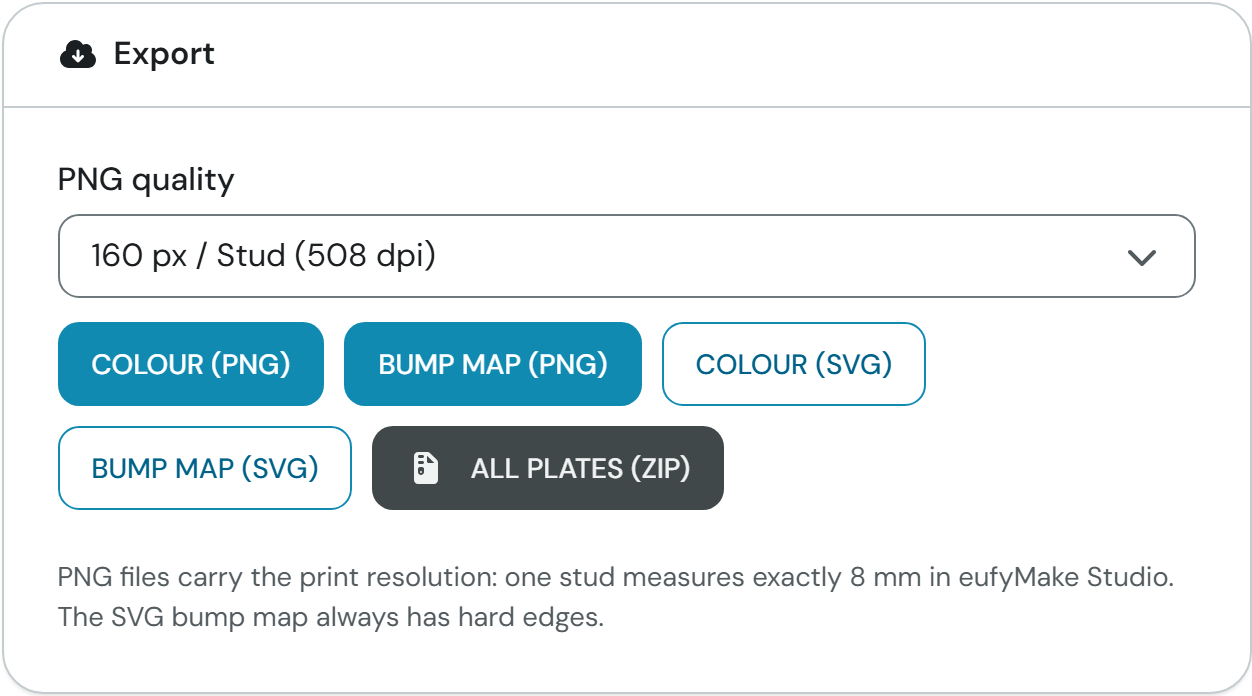
In the Export card set the PNG quality and download the files.
¶ Fields and settings
¶ Image
| Field | What it means | Typical value |
|---|---|---|
| Drop an image here or click | Loads your image. JPG, PNG and WebP are accepted. Very large images are scaled down internally to at most 4096 pixels on the long side. | any |
| Zoom | Enlarges the crop. You can only move the crop if you have zoomed in or the image has a different aspect ratio than the grid. | 1 to 8 |
| Brightness | Makes the image lighter or darker before it is turned into pieces. | −100 to 100, 0 = unchanged |
| Contrast | Increases or decreases the difference between light and dark areas. | −100 to 100, 0 = unchanged |
| Saturation | Makes colours stronger or paler. | −100 to 100, 0 = unchanged |
| Interpolation | Defines how the image pixels of one field become a single piece colour (see below). | Mean |
Options of Interpolation:
| Option | Effect |
|---|---|
| Mean – soft, for photos | Averages all image pixels of a field. |
| Median – robust against outliers | Takes the colour of medium brightness, so single stray pixels do not disturb. |
| Edge preserving – keeps lines, lettering, logos | Takes the darkest or the brightest pixel of the field, whichever stands out more from its surroundings. Thin lines stay visible. |
| Pixel centre – for pixel art | Takes only the pixel in the middle of the field; hard edges stay hard. |
¶ Size
| Field | What it means | Typical value |
|---|---|---|
| Width (studs) | Number of pieces across. One stud measures 8 mm. | 8 to 128, default 48 |
| Height (studs) | Number of pieces down. | 8 to 128, default 48 |
| Plate size for the export | Splits the mosaic into square plates for the export. "do not split" exports it as one piece. | 8 × 8, 16 × 16, 32 × 32, 48 × 48, custom size; default 16 × 16 |
| Plate edge (studs) | Appears with "custom size …": the edge length of your plate. | 8 to 128, default 24 |
| Plates: … | Shows how many plates fit across and down, and how many there are in total. "edge plates are smaller" appears if the size does not divide evenly. | display only |
¶ Piece type
| Field | What it means | Typical value |
|---|---|---|
| Piece | Shape of the piece: "Tile 1×1, square", "Tile 1×1, round", "Plate 1×1, square (with stud)" or "Plate 1×1, round (with stud)". Only plates have a stud. | Tile 1×1, square |
| Gap (mm) – 0 = plain pixel graphic | Space between the pieces. At 0 the fields touch without gaps. | 0 to 1 mm, default 0.2 mm |
| Draw studs (%) | For plates, draws a light and a shadow edge around the stud into the colour file. Greyed out for tiles. | 0 to 100 %, default 0 |
¶ Colours
| Field | What it means | Typical value |
|---|---|---|
| Colour mode | "Free colours" keeps the image colours as they are. "Brick colours" rounds every field to the most similar brick colour and creates the parts list. | Free colours |
| include retired colours (*) | Also offers colours that are no longer made. They are marked with an asterisk in the list. | off |
| All / Greyscale / None | Selects all colours in the list, only the greys (including black), or none. You switch single colours with their tick box. | All |
| Max. number of colours (0 = unlimited) | Limits how many different brick colours appear. The rarest colour is replaced by the most similar remaining one until the limit is met. Merged colours count as one colour. | 0 to 999, default 0 |
| Dithering (Floyd-Steinberg) | Spreads the colour error to neighbouring fields so that a few colours give the impression of in-between shades. Works best on photos with smooth gradients. | off |
The brick colour options (tick boxes, "All", limit, dithering), the Parts list and its buttons only appear in "Brick colours" mode. Hover over a colour name to see its LEGO number and colour value; some colours additionally say "calibrated for printing".
¶ Bump map
The bump map is a greyscale image for relief printing: the lighter the grey, the higher it is printed; black is the gap.
| Field | What it means | Typical value |
|---|---|---|
| Height of the piece surface (%) | Grey level of the piece surface. | 0 to 100 %, default 50 |
| Stud height (%) | How much higher the stud sits above the piece surface. Only active for plates. | 0 to 100 %, default 50 |
| Edge softness (mm) – PNG only | Gives the piece edges a soft, stepped slope. In SVG files the bump map always has hard edges. | 0 to 1 mm, default 0 |
| invert (dark = high) | Reverses the grey levels. | off |
¶ Preview
| Field | What it means | Typical value |
|---|---|---|
| Preview | Switches between "Colour" and "Bump map". | Colour |
| Plate grid | Draws the plate borders as pink lines. Only shown if there is more than one plate. | on |
| Paint | Shows the painting tools (see "Result"). | off |
¶ Export
| Field | What it means | Typical value |
|---|---|---|
| PNG quality | Resolution of the PNG files: 80, 160 or 240 px per stud (254, 508 or 762 dpi). | 160 px / Stud (508 dpi) |
¶ Result
Once an image is loaded, the Preview shows the mosaic as it would be printed. In "Brick colours" mode the Colours card also shows the parts list (see "Parts list and ordering").
Correct by hand (Paint): switch Paint on, pick a tool and click pieces or drag across them.
| Tool | Effect |
|---|---|
| Brush | Paints pieces in the Paint colour. In "Brick colours" mode you pick the colour from the swatches, otherwise with the colour picker. |
| Eyedropper | Takes the colour of a piece as the paint colour. |
| Eraser | Restores the calculated colour. |
| Fill | Repaints the connected area of the same colour (across edges only, not diagonally). |
"Undo" takes back the last stroke (up to 50 strokes). "Remove all painted pieces" clears everything painted; that can be undone as well. Painted pieces survive every setting; only a new grid size or a new image removes them. You can only paint in the "Colour" view.
Export (the buttons become active once an image is loaded and calculated):
| Button | Content and use |
|---|---|
| Colour (PNG) | The coloured mosaic as an image with print resolution: one stud measures exactly 8 mm in eufyMake Studio. For the colour print. |
| Bump map (PNG) | The relief as a greyscale image, also true to scale. For the relief print. |
| Colour (SVG) | The mosaic as a vector graphic in millimetres, independent of resolution. |
| Bump map (SVG) | The relief as a vector graphic, always with hard edges. |
| All plates (ZIP) | A ZIP (e.g. "mosaic_48x48_plates.zip") with colour and bump map of every plate as PNG and SVG, plus a text file "README.txt" with the overall size, the plate list, the parts list and the colour data sources. In "Brick colours" mode it also contains the colour legend (SVG) and the three parts files (see below). |
The export runs entirely in your browser. With large grids your browser may reach its image size or memory limit; you then see a note about the resolution used, or an error message.
¶ Parts list and ordering
The parts list appears in the Colours card, only in "Brick colours" mode.
| Column | Content |
|---|---|
| Colour | Swatch and name. Hover over the name to see the LEGO and BrickLink colour number. |
| Element | The LEGO element number of the selected Piece in this colour. Click it to open the element on LEGO Pick a Brick; hover to see price and weight. "–" means "not available as an element": this colour does not exist as this piece. |
| Count | How many pieces of this colour you need. |
| merge into … | Gives the pieces of this colour another colour (see below). |
Below the table you see the total: number of pieces, weight in grams and the Pick a Brick price in Germany ("PaB DE"). If prices or elements are missing for some colours, a note says so, for example "Price known for 6 of 8 colours only.".
Merge colours: pick a colour under "merge into …" and the pieces of the first colour get the second one. With "Max. number of colours" this frees a slot. Each merge appears as a button "Colour A → Colour B ✕"; click it to undo the merge ("Undo merge"). Merged colours are no longer offered as paint colours.
Maximise table opens the parts list with all details: Colour, LEGO colour, BrickLink colour, BrickLink colour name, Element, Count, PaB €/pc, PaB €, BrickLink avg €/pc, BrickLink €, LEGOLAND €/pc, LEGOLAND €, Weight g, plus a "Total" row. PaB is the Pick a Brick price DE, BrickLink the average sale price (not available for every element), LEGOLAND the Pick a Brick wall priced by weight. All prices without guarantee.
Pieces you painted in "Free colours" mode keep their colour when you switch to "Brick colours". They appear as "Custom colour" without element number.
The buttons below the parts list become active once an image is loaded and calculated:
| Button | Content and use |
|---|---|
| Parts list (CSV) | All rows with element ID, name, LEGO colour, BrickLink part and colour, quantity, unit price, total and weight. On the English page separated by commas with decimal points, on the German page by semicolons with decimal commas. |
| BrickLink (XML) | Wanted list for BrickLink (upload under Wanted → Upload). Only colours with a matching element. |
| Rebrickable (CSV) | Import file for Rebrickable (Part, Color, Quantity). Only colours with a matching element. |
| Open in steine | Creates a list "Mosaic 48×48 (Mosaic Generator)" with element numbers and counts on steine (brickbank.app) and opens it in a new tab, for example to compare prices. |
| Open in LEGO Pick a Brick | Opens all elements in the Pick a Brick search. You enter the quantities there yourself. |
The colour legend (swatch, name, numbers and count of every colour as SVG) is only in the ZIP. Below the buttons the page names the source: element IDs, prices (Pick a Brick DE) and weights come from the steine catalogue on brickbank.app; prices may change.
¶ Tips and FAQ
Is my image uploaded? No. According to the note on the page it is processed in your browser only. Only the parts list leaves your browser (element numbers, for steine also the counts), and only when you click "Open in steine" or "Open in LEGO Pick a Brick".
My mosaic looks blurry or washed out. Expect less detail: at 48 × 48 studs only 2,304 fields remain. Use a larger grid, zoom in on the subject, raise contrast or saturation, or try "Edge preserving" for logos and lettering.
When should I use dithering? For photos with smooth gradients and only a few allowed colours. Leave it off for graphics with flat areas and for pixel art, otherwise the areas look noisy.
Why does the export show a note about resolution? Browsers can only create images up to a certain size. For very large grids the tool lowers the pixels per stud and tells you which value is used. Choose a lower PNG quality or export plates individually through the ZIP, where the limit applies per plate.
My painted pieces are gone. A new width or height, or a new image, removes them because the positions no longer match. Set the grid size first and paint afterwards.
I cannot choose "Brick colours". Then the brick colour palette is currently unavailable (the page tells you so). "Free colours" still works.
Why does the Element column show "–"? This colour does not exist as the selected piece. Try another piece type or merge the colour into a similar one. Such colours are missing from the BrickLink and Rebrickable files and from the hand-over to steine and Pick a Brick.
How current are element numbers and prices? They come from the steine catalogue on brickbank.app. If it cannot be reached, the tool uses a stored copy, so prices may be older. All prices are without guarantee.
¶ Sources
- Inspired by Lego Art Remix by Deb Banerji.
- Colour data: brickcolor.net (Rylie Howerter, measured colour values), Rebrickable (colour numbers and names, including BrickLink) and brickbank.app (calibration for printing).
- Element numbers, prices and weights: steine catalogue on brickbank.app (Pick a Brick DE, BrickLink average sale prices, LEGOLAND Pick a Brick wall). Prices may change; all prices without guarantee.
- LEGO® is a trademark of the LEGO Group, which does not sponsor, authorize or endorse this tool.