The Map Poster turns a section of OpenStreetMap into a stylised poster with a title, subtitle and coordinates. It is for anyone who wants a city, a neighbourhood or a special place as wall art, a print file or a gift.
Open the tool: https://inkbuddy.app/tools/map-poster/?lang=en
Access: The tool is only available with an account or with a personal invitation link. Without either, the page sends you to the login. You get invitation links from the site owner; they come with their own quota (see below) and can be revoked at any time.
¶ Step by step
The example: an A4 portrait poster of Vienna.
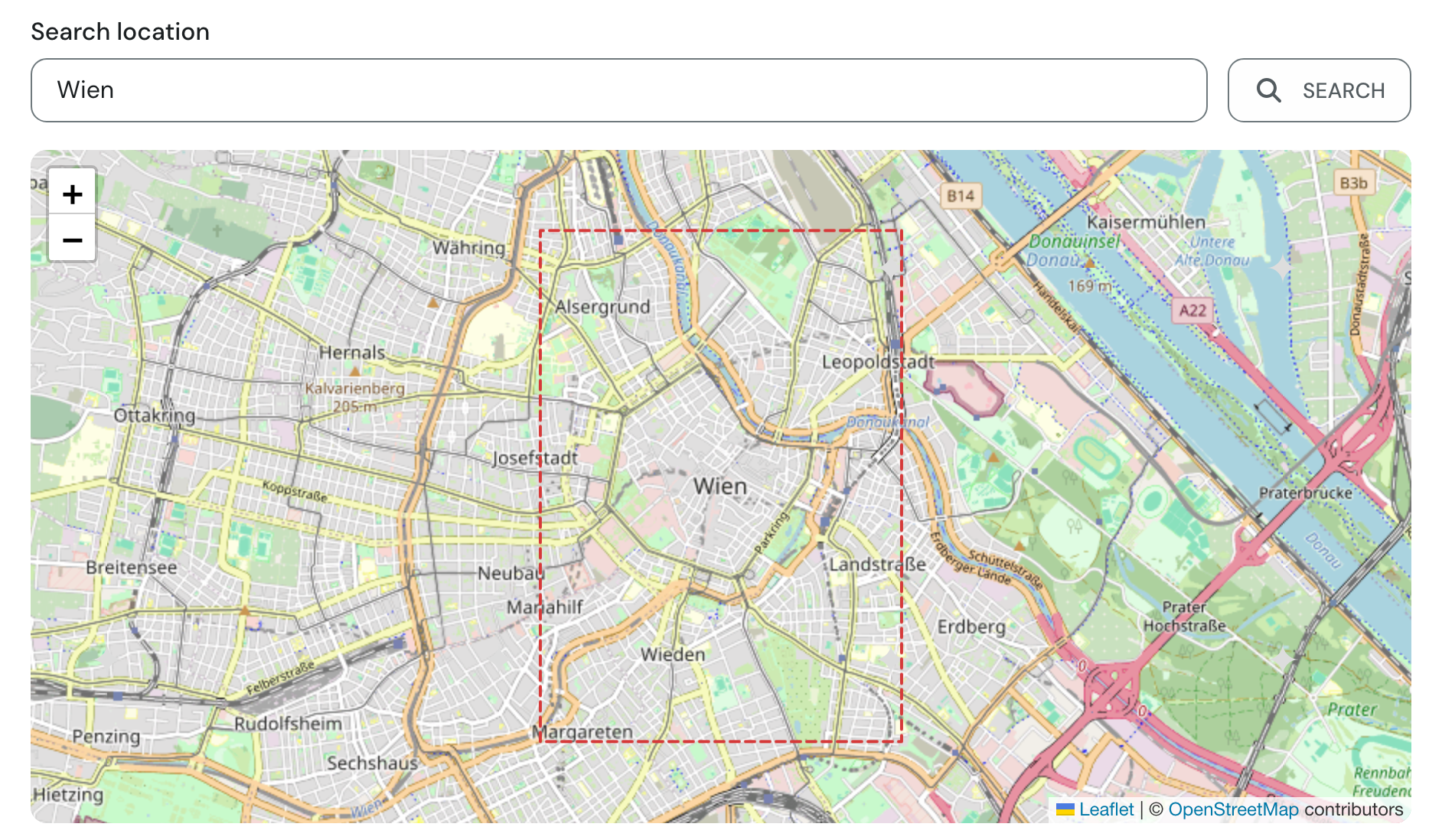
- Type the name into Search location (here "Wien") and click Search (or press Enter). The map jumps to the place. If Title and Subtitle are still empty, the page pre-fills them: the title with the place name, the subtitle with the last part of the address, usually the country.
- Pan and zoom the map until the red dashed frame shows what should go on the poster. Everything inside the frame is printed, everything outside is not.
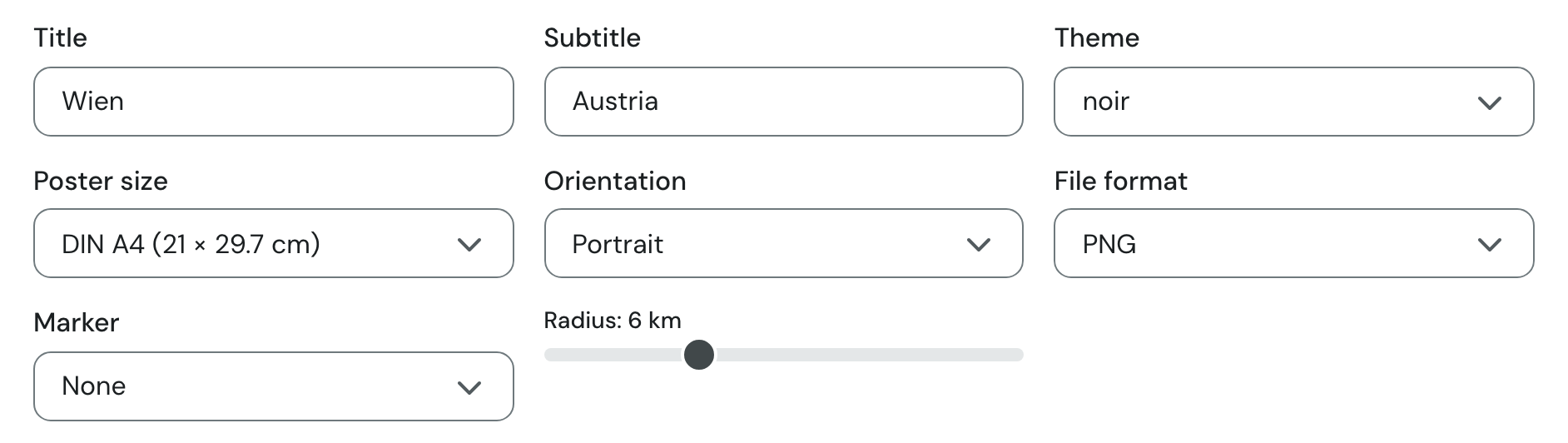
- Below the map comes the Preview; below that, set the title, subtitle, Theme, Poster size, Orientation, File format, Marker and Radius. In the example: theme "noir", "DIN A4 (21 × 29.7 cm)", "Portrait", PNG, radius 6 km. The frame on the map follows every change.
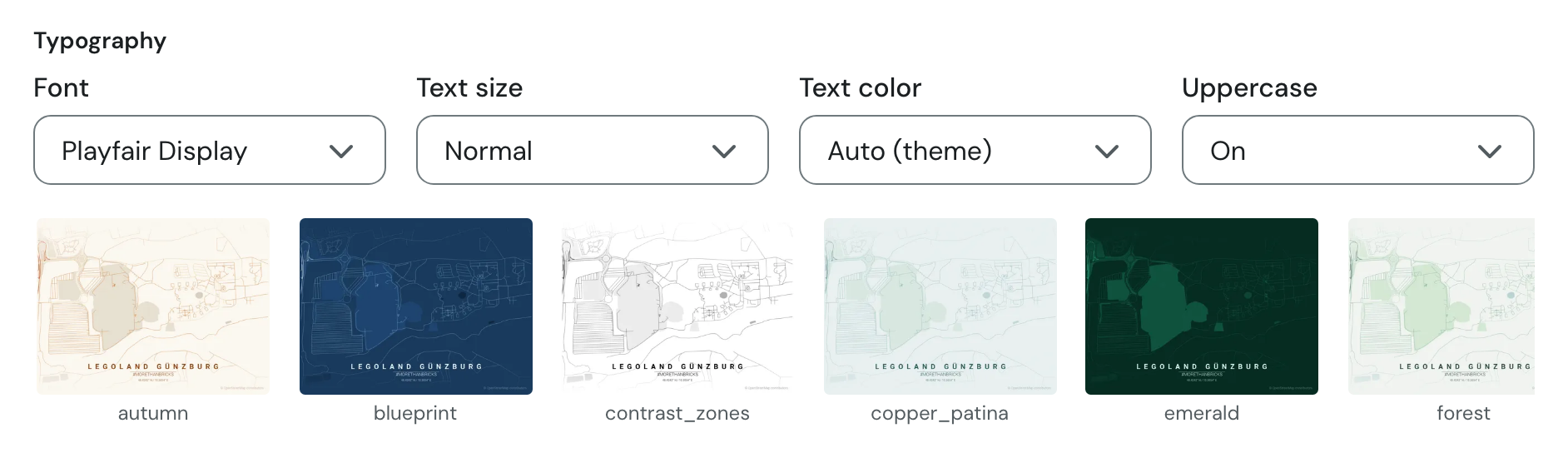
- Under Typography, choose font, text size, text color and uppercase. Clicking a tile below picks a theme.
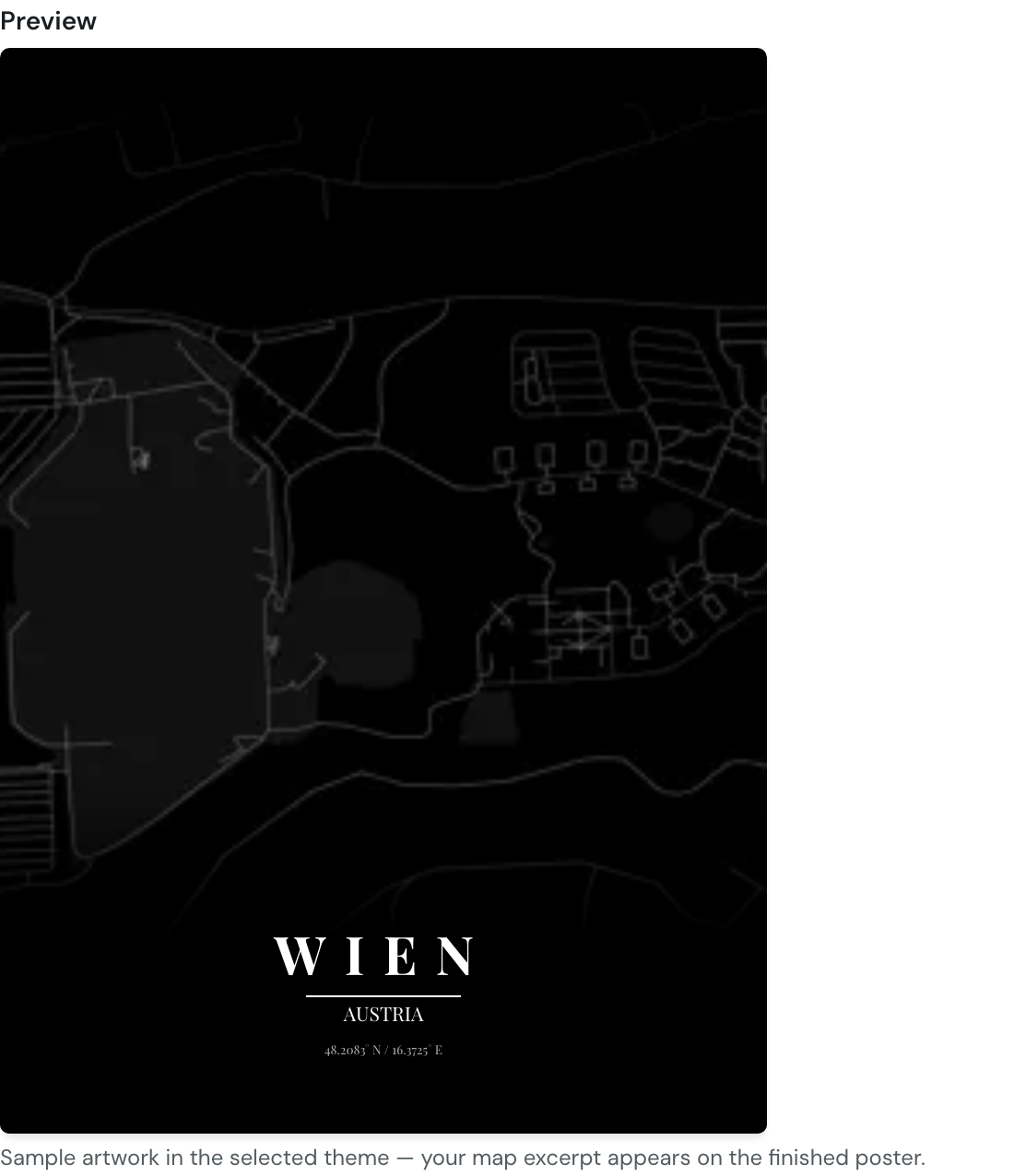
- Check the Preview right below the map: it shows theme colors, font and your texts immediately. The map artwork behind the text is only a sample; your own excerpt appears on the finished poster.
- Click Create poster. The poster is rendered on the server and takes a few minutes. You see a card with a spinner ("Generating your poster — this takes a few minutes…"). You can leave the page open; it reloads by itself when the poster is ready.
- The finished poster appears under My posters, where you can download, share or delete it.
¶ Fields and settings
¶ Place and excerpt
| Label | What it means | Typical value |
|---|---|---|
| Search location | Looks the place up via OpenStreetMap and moves the map there. It only searches when you click Search or press Enter. If nothing is found you see "Location not found". The search text is also used as the poster's name in the list. | A city or landmark, e.g. "Hamburg" |
| Map with red frame | The frame shows exactly the area that ends up on the poster. Its centre is the centre of the map. Shape and size follow poster size, orientation and radius. | Pan and zoom the map |
| Radius | How much surroundings fit on the poster. Small radius: big, close-up streets (a neighbourhood). Large radius: a lot of area with fine lines (a whole city). The red frame shows the effect immediately. | 2 to 15 km in 0.5 km steps, 2.5 km preselected |
¶ Texts
| Label | What it means | Typical value |
|---|---|---|
| Title | Large heading at the bottom of the poster. Titles longer than 10 characters are set smaller automatically so they fit. Left empty, the search text is printed. | Place name, up to 100 characters |
| Subtitle | Line below the title. Below that the poster prints the coordinates of the map centre. Left empty, the search text is printed here too. | Country or motto, up to 100 characters |
Slashes, backslashes and ".." are not allowed in the title, the subtitle and the search text. A search text such as "Frankfurt/Main" therefore fails with "Invalid city" when you create the poster.
¶ Theme, size and file
| Label | What it means | Typical value |
|---|---|---|
| Theme | The colour scheme of the poster: background, roads, water, parks and text color. There are 17 ready-made themes (e.g. noir, blueprint, terracotta, ocean); the tiles below Typography show each one as a sample. Your own themes appear with a ★ at the top of the list. | "terracotta" is preselected |
| Poster size | Size of the poster: 10 × 15, 20 × 30, 30 × 40, 40 × 50 and 20 × 20 cm, DIN A6, A5, A4, A3, 5.4 × 8.6 cm (business card) or Custom. The list shows the portrait dimensions; choose landscape with Orientation. | 30 × 40 cm is preselected |
| Width (cm) / Height (cm) | Only shown for "Custom". The orientation then follows from your dimensions. | 5 to 50 cm per side |
| Orientation | Portrait or Landscape. Nothing changes for 20 × 20 cm (square); for "Custom" the field is locked. | "Landscape" is preselected |
| File format | PNG (image; the only format that allows markers), SVG (vector graphic, scales without loss) or PDF. | PNG |
¶ Marker
| Label | What it means | Typical value |
|---|---|---|
| Marker | None, Heart or Pin: a symbol at a point of your choice. Click the map to place the marker, drag to move it. It has to sit inside the red frame; otherwise you see "Marker is outside the visible poster area" and Create poster is disabled. Markers only work with PNG ("Markers are only available for PNG"); if you switch to SVG or PDF the marker is reset. | None |
¶ Typography
| Label | What it means | Typical value |
|---|---|---|
| Font | Roboto, Montserrat, Oswald, Playfair Display (a serif font), Lora, Poppins, Raleway, Merriweather. | Roboto |
| Text size | Small, Normal or Large (about 70 %, 100 % and 130 % of the normal size). | Normal |
| Text color | Auto (theme) uses the theme's text color. Custom shows a color picker and colours all poster texts in your color. | Auto (theme) |
| Uppercase | On: title and subtitle in capitals, the title also with wide letter spacing (Latin script only). Off: written as you typed it. | On |
¶ Custom themes
The New theme button opens the Custom theme dialog. You give it a name (field Name, up to 50 characters) and choose four colors: Background, Text, Water and Road base color. The page derives parks and the road shades (motorways, main roads, side streets) from them. Under Advanced (all colors) you can override each of those individually. In the tile row and in the preview a custom theme shows as a plain colour swatch, without a sample picture. Save theme stores it, and afterwards you pick it like any other theme. The pencil edits it, the trash can deletes it after a confirmation. You can store up to 10 custom themes. With an invitation link this feature is not available.
¶ Result
Finished posters are listed under My posters. Each tile shows place name, theme, size, radius, file format and date.
- Preview: For PNG posters, clicking the image opens a large view. SVG and PDF show a file icon instead of an image.
- Download: The Download button gives you the file in the format you chose. The file name is made of place name and theme, e.g. "Wien-noir.png". You cannot change the format afterwards; create the poster again instead.
- Share: The share icon opens the Share poster dialog. While the poster is not shared there is no link: only a click on Create link makes it public and shows the Public link. Copy copies it, Disable link turns it off again, after which it is dead immediately. Creating a link again later gives a new address. Anyone with the link needs no account: the page shows the title, the image (for PNG) and a download button, plus the note "Created with InkBuddy Map-Poster" with a link to the tool. Search engines are asked not to list the page. The share icon does not appear with invitation access.
- Delete: The trash icon asks "Really delete this poster?" and then removes the file and the entry for good. A poster that is still rendering cannot be deleted. Deleting also ends its public link.
¶ Tips and FAQ
How long does it take, and where do I see progress?
The tool says "a few minutes". There is no progress bar, only the spinner; the page checks every 5 seconds and reloads when the poster is ready. If it takes longer than 15 minutes it is stopped as an error ("Zeitüberschreitung", shown in German). Errors appear as a red message with the place name; close it with the X.
How many posters can I create?
With an account: at most 5 posters per day and only one at a time. Failed runs do not count towards the 5, but there is a cap of 20 attempts per day in total. If you see "A poster is already being generated — please wait.", wait until the running one is done.
What is "Test access"?
With an invitation link you see a banner with a total and a daily quota ("posters total", "today", or "no limit"). When it is used up, Create poster is disabled. Deleted posters still count, and the cap of 20 attempts per day applies here too. When the quota is used up, the banner says "Test quota used up — thanks for testing!". Custom themes and sharing are not part of it.
The poster does not look like my preview.
The preview is a sample for colors, font and texts. The map artwork is always the same sample; your excerpt is the red frame on the map.
The "Create poster" button is greyed out.
Possible reasons: a poster is being rendered, the marker is outside the frame, or the test-access quota is used up.
Where does the data come from?
From OpenStreetMap ("Map data © OpenStreetMap"). The tool is based on the open-source project MapToPoster by Ankur Gupta (MIT license).