The Flip Generator turns two images into a flip effect: depending on your viewing angle you see image A or image B. It is for anyone who prints a relief of fine prisms (ridges) with a UV printer and wants two motifs to appear alternately on it.
Link to the tool: https://inkbuddy.app/tools/flip-generator/?lang=en
¶ Step by step
-
Under Image A (view from above) and Image B (view from below), load one JPG or PNG each. Click the dashed box or drag the file into it. Only JPG and PNG are accepted; other files are ignored. Both images are processed in your browser only and are not uploaded.
-
Enter the size of the motif under Width (mm) and Height (mm). The example below uses 55 × 55 mm.
-
Set Stripe width (mm), Quality, Orientation and Prism height (mm). The defaults (1.0 mm, Standard, Horizontal, 1.8 mm) are a usable starting point.
-
Read the line below the controls. It shows the motif and print size, the pixel size, the stripe width in pixels and the angle at which the image fully flips. The line below it shows how much detail is kept.
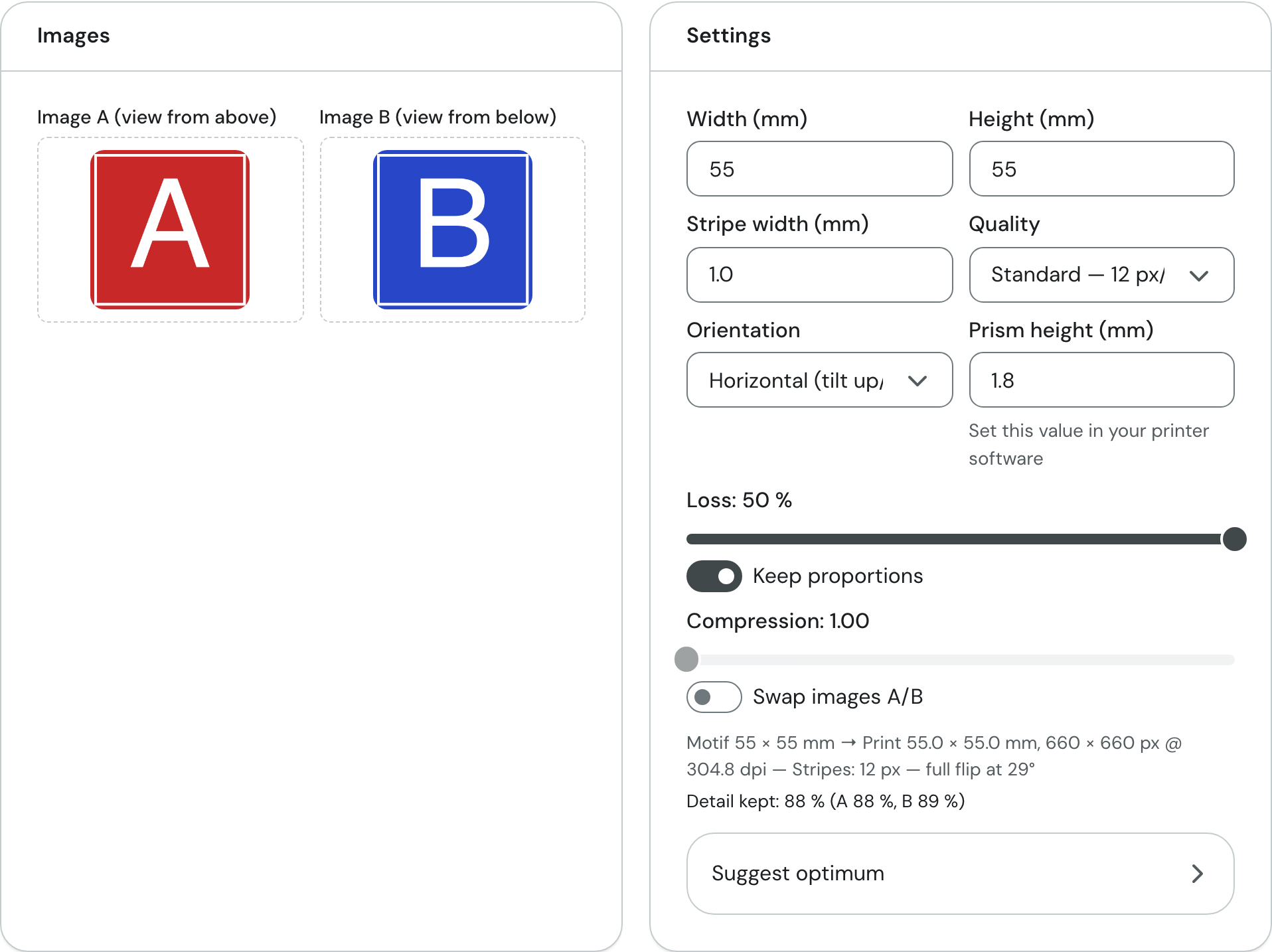
In the picture: the two test images on the left, the settings on the right. Below them the info line "Motif 55 × 55 mm → Print 55.0 × 55.0 mm, 660 × 660 px @ 304.8 dpi — Stripes: 12 px — full flip at 29°" and "Detail kept: 88 % (A 88 %, B 89 %)".
-
Check the two result images. The color image is the stripe template, the relief map is the height template.
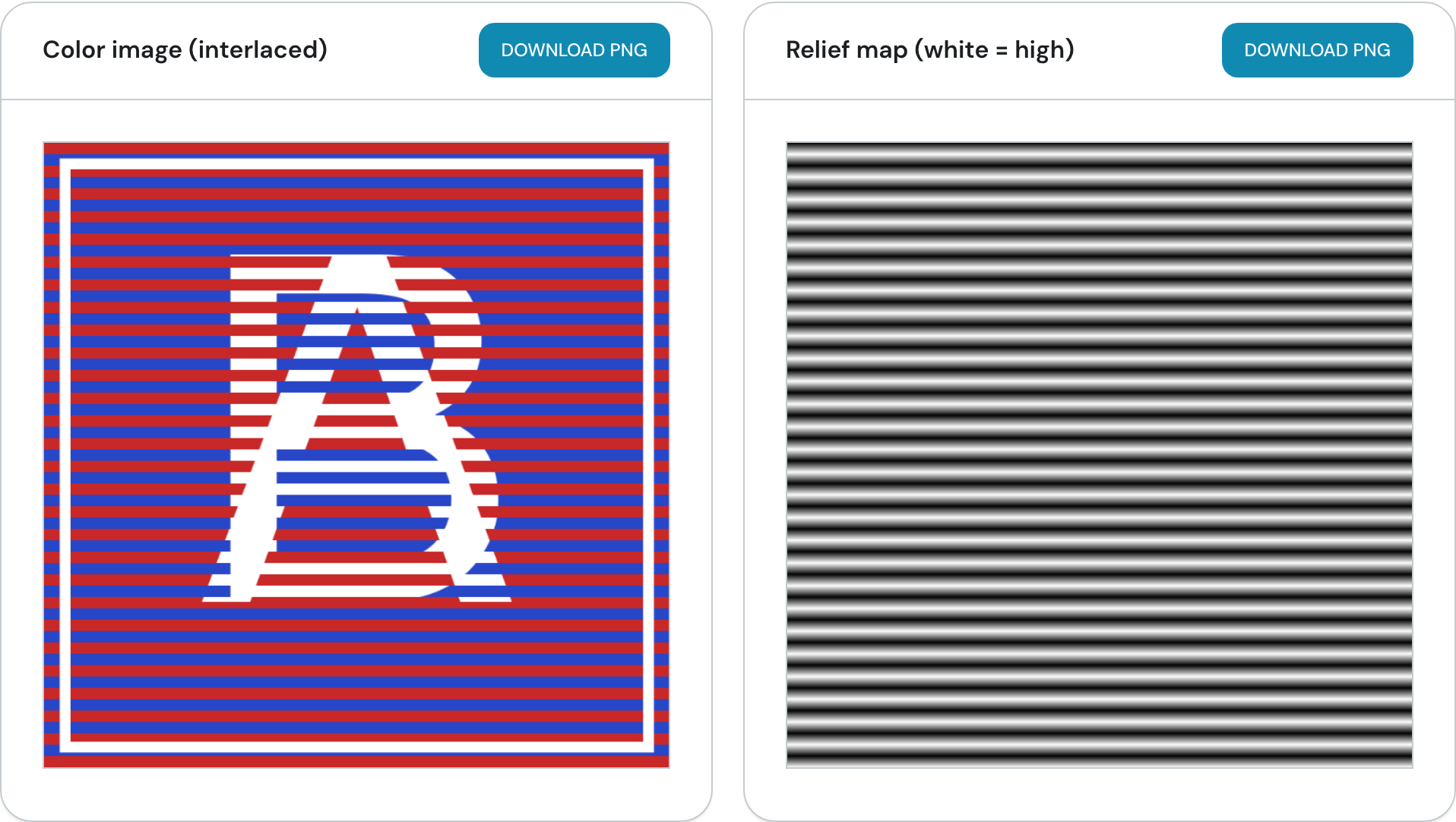
In the picture: on the left, stripes from image A (red) and image B (blue) alternate. On the right is the relief map: white is high, black is low.
-
Under Tilt preview (simulation), drag the Viewing angle slider back and forth or press Auto swing to see how the image changes as you tilt it.
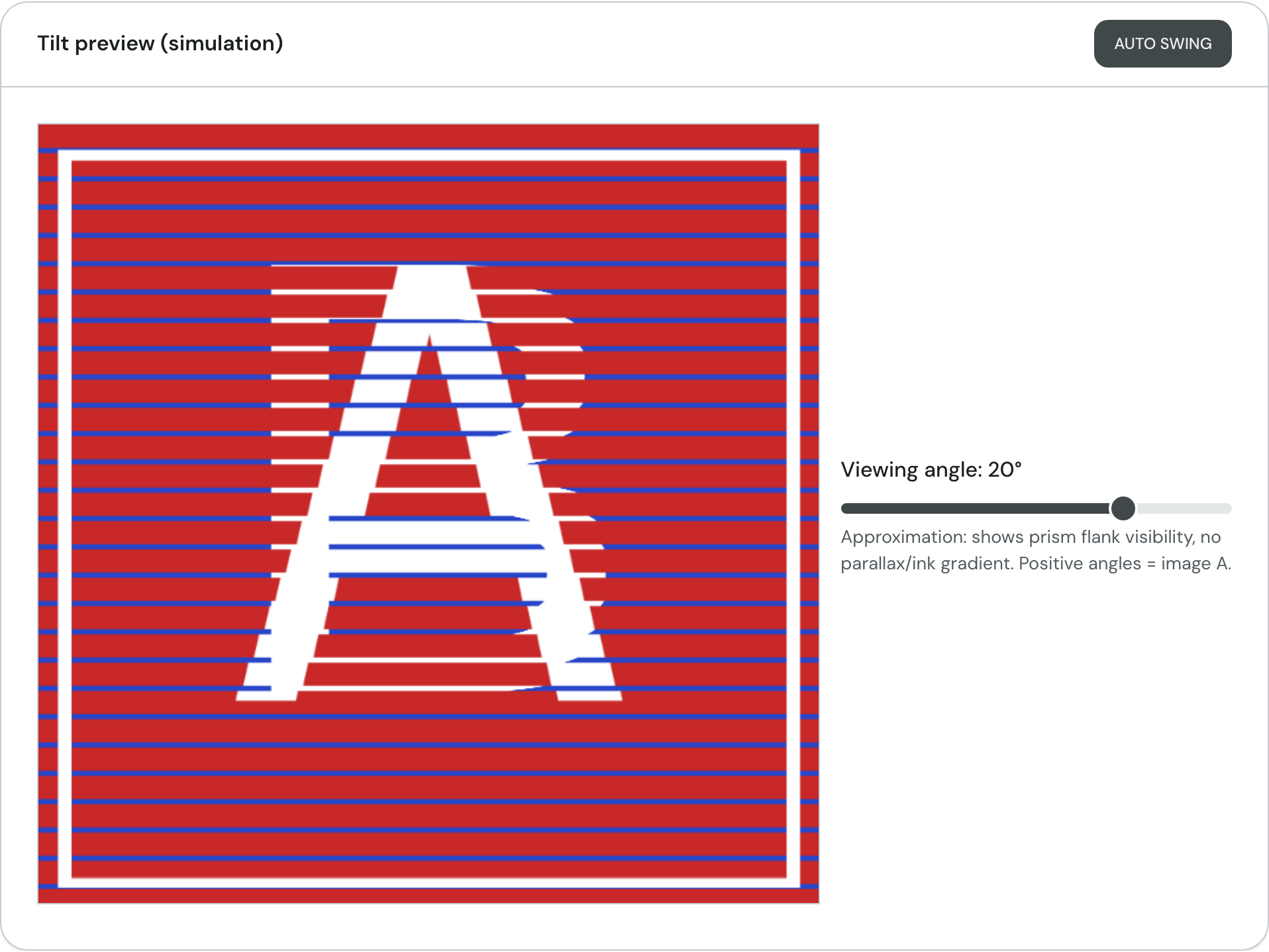
In the picture: at 20° image A dominates and only thin lines of image B remain.
-
Click Download PNG on both result images and print them with your UV printing software. There, set the prism height to the same value you used in the tool.
¶ Fields and settings
¶ Images
| Field | What it means | Typical value |
|---|---|---|
| Image A (view from above) | The image you see when you look at the object from above. Positive angles in the preview show image A. | JPG or PNG |
| Image B (view from below) | The image you see from below. | JPG or PNG |
The images do not need to match the motif format. They are center-cropped so that they fill the motif. If the aspect ratio of an image differs clearly from the motif (by more than about 30%), a warning appears with the name of the image ("Image A" or "Image B"); the preview shows what gets cropped. An image with roughly the format of your motif avoids this.
¶ Settings
| Field | What it means | Typical value |
|---|---|---|
| Width (mm) | Width of the motif. The print width can differ from it, see "Loss" and "Compression". | 5 to 1000 mm, default 55 |
| Height (mm) | Height of the motif. | 5 to 1000 mm, default 55 |
| Stripe width (mm) | Width of one stripe. One stripe belongs to image A, the next to image B. Narrow stripes give finer images but are harder to print. The tool rounds to whole pixels; if the value changes because of that, the info line shows "effective" with the actual value. | 0.3 to 5 mm, default 1.0 |
| Quality | Resolution of the generated images. Higher quality means more pixels per millimeter and therefore larger files. | Low 10 px/mm (254 dpi), Standard 12 px/mm (305 dpi), High 16 px/mm (406 dpi), Max 23 px/mm (584 dpi) |
| Orientation | Direction of the stripes. "Horizontal (tilt up/down)": horizontal stripes, the image flips when you tilt the object up or down. "Vertical (tilt left/right)": vertical stripes, the image flips when you tilt it left or right. | Horizontal |
| Prism height (mm) | Height of the printed prisms. The tool uses it to calculate the flip angle and the preview. The value is not stored in the files; set it in your printer software. | 0.2 to 5 mm, default 1.8 |
| Swap images A/B | Swaps which image is seen from above and which from below. | off |
The info line also shows "full flip at …°". This is the angle from which you see only one image. The higher the prisms are relative to the stripe width, the smaller the angle. With a 1.0 mm stripe width and 1.8 mm prism height it is 29°.
"Stripes: 12 px" is the stripe width in pixels of the generated images: stripe width times pixels per millimeter, rounded to whole pixels (1.0 mm × 12 px/mm = 12 px). If rounding changes the stripe width, "(effective 0.92 mm)" or similar follows with the actual value.
¶ Loss and compression
In a flip image each image only gets every second stripe, so part of each image is missing. These controls decide how much.
| Field | What it means | Typical value |
|---|---|---|
| Loss | The share of the motif that is skipped between two stripes. 50% is the classic variant: half of each image is missing, but the format stays unchanged. Less loss keeps more detail but needs compression or makes the print longer. | 0 to 50%, default 50 |
| Keep proportions | When on, the tool calculates the compression itself so the print format matches the motif. The compression slider is then locked. When off, you set the compression yourself. | on |
| Compression | How much of the motif is squeezed into a single stripe. At 1.00 a stripe carries as much motif as it is wide, at 2.00 twice as much. | 1.00 to 2.00 |
If loss and compression do not fit together, the print is stretched or squeezed along the stripe direction. The info line then shows this as "stretch" (for example "stretch 2.00" at loss 0% and compression 1.00: the print is twice as long as the motif). With "Keep proportions" there is no stretch.
¶ Detail kept
Below the info line you see "Detail kept: 88 % (A 88 %, B 89 %)". The tool uses it to estimate how much of each image is left when you view the object fully from the A or B direction. 100% means nothing is lost. The value is for comparing your settings. It does not take crosstalk or ink spread into account.
¶ Suggest optimum
This collapsible area searches for the setting that keeps the most detail. It needs both images.
| Field | What it means | Typical value |
|---|---|---|
| Min. stripe width (mm) | The narrowest stripe your printer prints cleanly. Nothing narrower is suggested. | 0.5 (default), 0.1 to 5 |
| Target tilt angle (°) | The angle by which the image should have fully flipped at the latest. For every stripe width it determines the prism height needed. | 30 (default), 5 to 60 |
| Max. prism height (mm) | The highest relief your printer can print. | 3 (default), 0.2 to 5 |
| Max. print edge (mm) | Longest allowed edge of the print, for example the size of your print bed. Leave empty: then only the limit of 8000 pixels applies. | empty, 5 to 2000 |
| Max. stretch | How much the print may be stretched or squeezed compared with the motif. Only has an effect when "Keep proportions" is off. | 1.5 (default), 1 to 2 |
Click Calculate suggestion. A progress bar runs, and while the search is running the button reads Cancel; click it to stop the search. The result appears as one line:
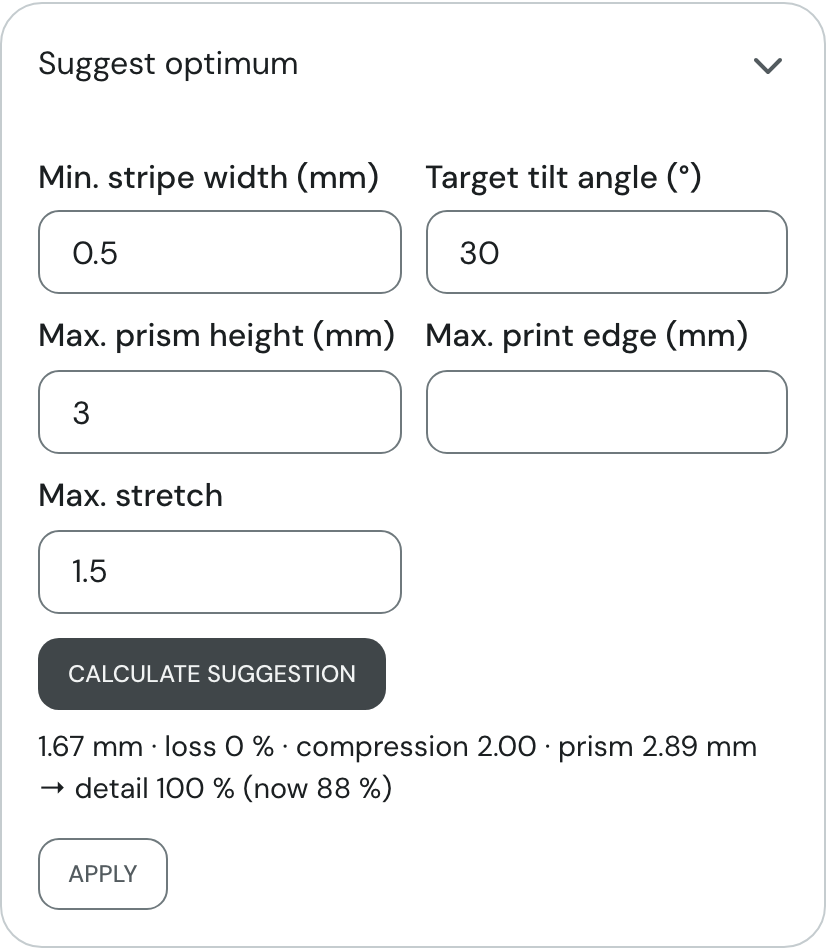
In the picture: here the suggestion is "1.67 mm · loss 0 % · compression 2.00 · prism 2.89 mm → detail 100 % (now 88 %)". Apply enters the values into Stripe width, Loss, Compression and Prism height. If the suggestion uses the narrowest stripe your limits allow, the line adds "The minimum stripe width is the bottleneck — narrower stripes would keep more detail." If nothing fits, it says "No combination meets the limits." The suggestion disappears as soon as you change anything by hand afterwards: images, size, quality, orientation, swap, stripe width, loss, "Keep proportions", compression, prism height or one of the five limits.
¶ Tilt preview
| Field | What it means | Typical value |
|---|---|---|
| Viewing angle | Simulated angle from which you look at the object. Positive values show image A, negative values image B. | −45° to 45°, default 0 |
| Auto swing | Lets the angle swing back and forth automatically. Another click stops it. |
The preview is an approximation. It shows which prism flanks are visible, but no parallax and no ink spread.
¶ Result
The tool produces two PNG files:
- Color image (interlaced): image A and image B in alternating stripes. This is the color template for printing. Download name:
flip_color.png. - Relief map (white = high): a grayscale image with even waves whose period is two stripe widths. This is the height template for the prism relief. Download name:
flip_relief.png.
Both files have the same size and contain the resolution (pixels per millimeter), so they appear at the right size in your printing software. The prism height is not part of the files. The downloads only become active once both images are loaded.
¶ Tips and FAQ
The download buttons are grey. Either an image is still missing, or the output is too large: above 8000 pixels edge length the tool shows a warning and disables the downloads. Reduce the motif size or choose a lower quality.
Which stripe width should I use? Start at 1.0 mm. Narrower stripes give finer images, but not every printer hits them cleanly. In "Suggest optimum", enter the minimum your printer can manage and let the tool calculate.
My images are cropped. The images fill the motif format and anything beyond it is cut off. Use images with a similar aspect ratio to the motif, or crop them beforehand.
The print size is larger than the motif. This happens when "Keep proportions" is off and loss and compression do not fit together. Turn "Keep proportions" back on.
Image A and image B are the wrong way round. Turn on "Swap images A/B".
Are my images uploaded? No. Everything is calculated in the browser; the images stay on your device.